
How to run 3D Countertop Quote
The launching of 3Dcountertop quote application may require some additional settings to be made when started depending on the Internet browser you use. As well if you do not have java at your desktop computer it must be downloaded and installed. It is possible that the app will redirect you to the java website where you will be able to do this. After installing java do not forget to restart your browser as promted. So, if you faced some trouble and the app didn't load please give it some time and wait for a while. If nothing happens please look through these tips for each browser which will help you to proceed:
Starting 3DCountertop quote in Mozilla Firefox
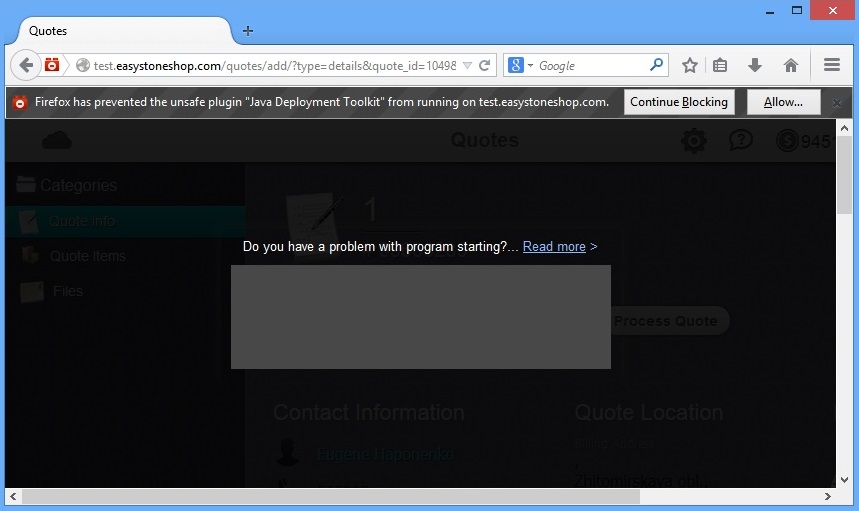
All the applications made on java have a strict security policy, our app is not an exception, that is why before the program loads you might be asked to give your confirmation and will see the notification which is shown in the picture below. To move forward you must click on “Allow” button.
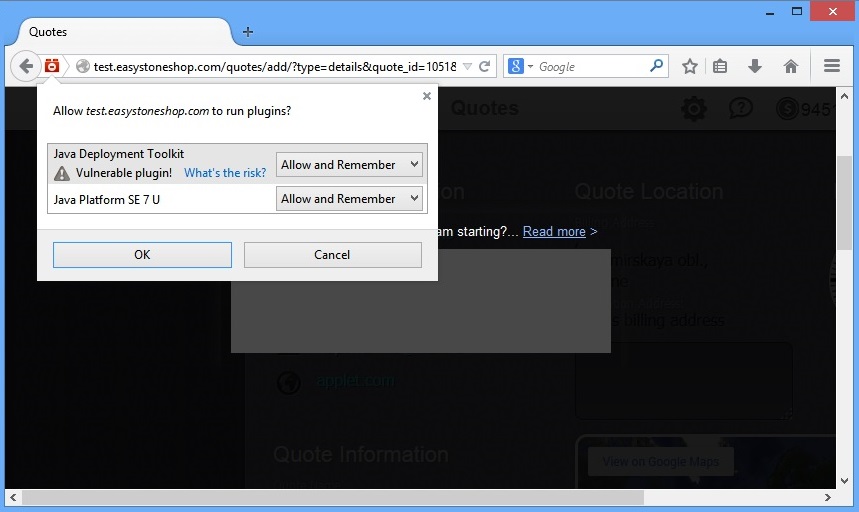
After that another window will appear where you'll have to choose “Allow and remember” options and click on “OK” button as it is shown in the picture below.
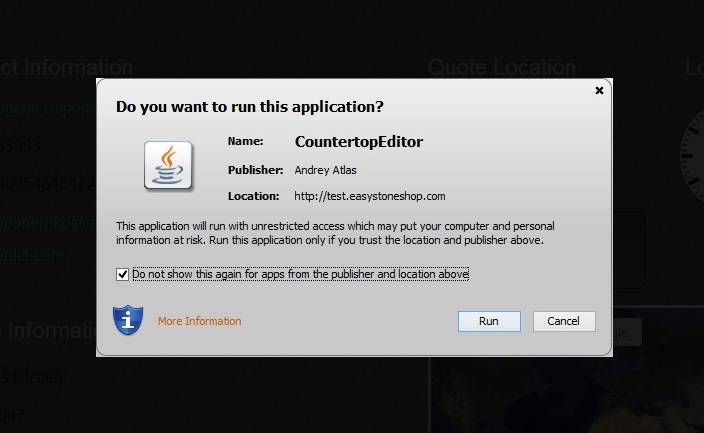
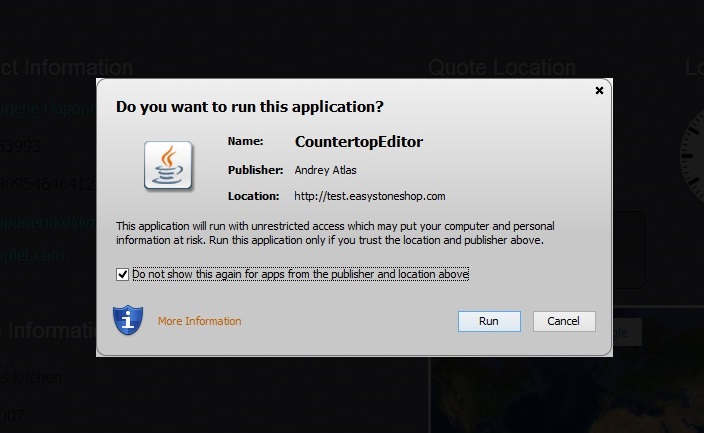
Finally before the program starts you should launch it by clicking on "Run" button. If you wish this window didn't pop up next time, just select the corresponding checkbox in the lower left corner of the window:
How to run 3DCountertop quote in Google Chrome
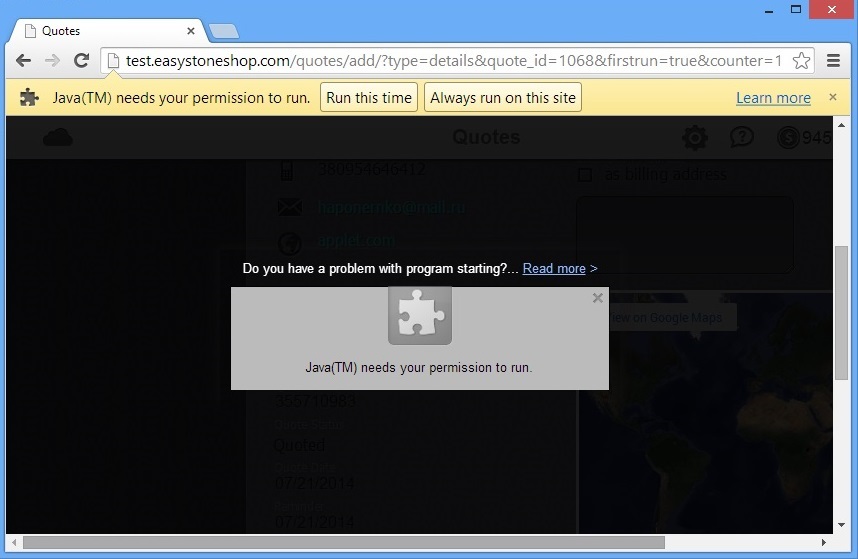
All the applications made on java have a strict security policy, our app is not an exception, that is why before the program loads you might be asked to give your confirmation and will see the notification which is shown in the picture below. To move forward you must click on “Always run on this site” button.
Finally before the program starts you should launch it by clicking on "Run" button. If you wish this window didn't pop up next time, just select the corresponding checkbox in the lower left corner of the window:
Starting 3DCountertop quote in Internet Explorer
The launching of the 3DCountertop quote program in Internet Explorer is very similar to how it was in other browsers. Usually all you have to do is just to click on "Run" button in the window that appears and that's it. Take a look at the picture below. You may select a checkbox before if you wish this window didn't pop up next time. However if there will be some requests of confirmation just accept them and the program will start.





