
Editing Products
In this tutorial we will continue the logical chain of adding products to your web inventory and will explain how to edit them. As well special attention is paid to this section because this middle stage of the process has a certain important influence on what can be done next. Several things must not be forgotten, some functions will turn out to be very useful.
Getting closer to the point it should be said that each product has the information important for the owner and the clients. This section first of all allows to keep it and organize in categories which are presented in the form of editable fields.
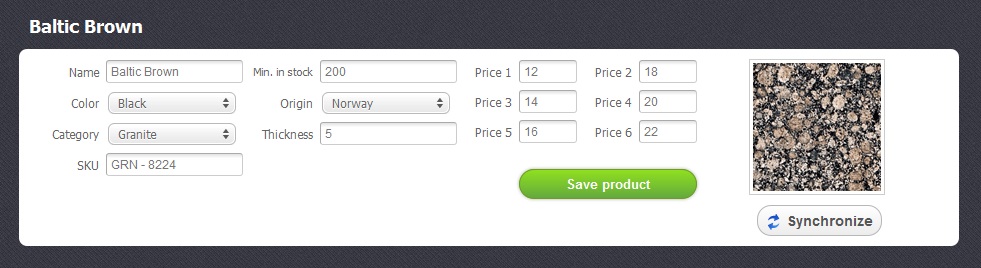
- Fields like "Name", "Color" and "Category" serve for editing the corresponding parameters and properties of the added product
- A field "origin" allows to select and remeber what country the added product comes from.
- A field "Thickness if for setting of how thick a product is. This number is being set according to the chosen system of units which can be changed in the "Settings" module.
Special attention require such a useful field as “Price”. You can see that it is divided into 6 separate small numbered fields. They allow to set six different prices for your clients. A different price for a different client. Some or all of them may be similar if you wish. The work of this function will be seen a bit later, when you deal wil "Clients" module. Easystoneshop will take these set prices into account in calculating operations.
Another useful thing is "Min. in stock" field. This field will help you always to remember the amount of products in your possession at warehouse. You may set this number at once and later, if the number of required products is bigger than this, easystoneshop will give you a hint, that you do not have so many, by highlighting the desirable amount with red colour.
If you did not pay attention to that in the Inventory module, easystoneshop will remind you of that in other modules,
For example you want to add units to a new quote, enter the quantity and see at once whether it is possible or not.
The big green "Save product" button if of great importance. First, after you have filled in all the necessary fields in this section do not forget to click on this button, otherwise changes won't be accepted. Secondly, if you do not save the product it will limit the list of fields in the process of adding units in the next "Units in stock" section.
“Synchronize” button is a thing to remember for those who use our applications like 3DShowroom, Quote, Product Gallery, etc. For a good work of the added product in these applications, you should press this button and check the status.





