
Allocated Units
In this section you are able to allocate the units for a concrete order. You can also see how many are requested and as a result how many are allocated.
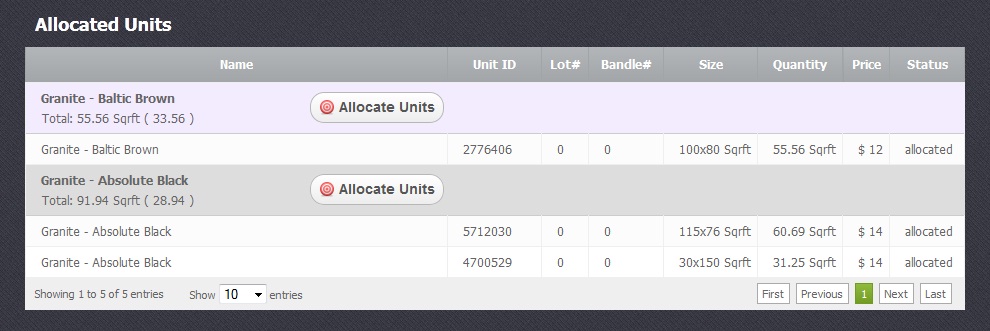
Allocating Units
Return to topIf you wish to do that you should click on the corresponding button "Allocate Units" which can be seen in the picture above. After that a new window will appear:
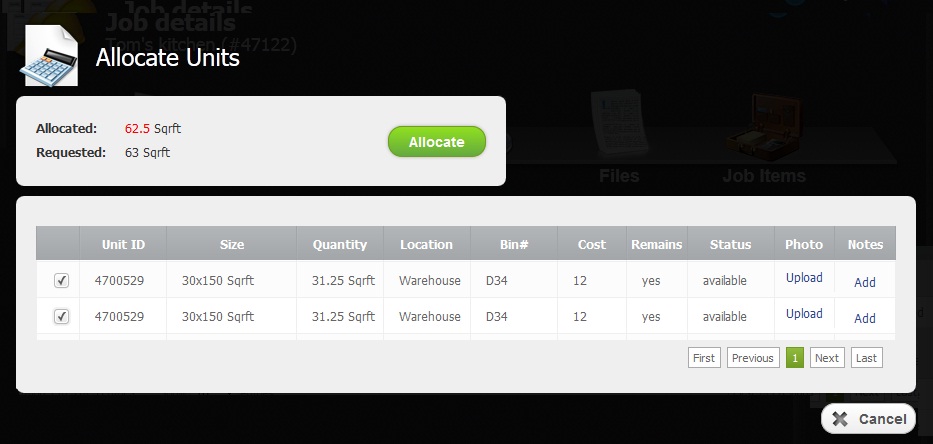
After you selected the checkbox  opposite all the necessary units you should finally press the corresponding green button shown on the picture above.
Working with Tables
Return to topShort description of the tables' columns:
- Name - name of the selected products.
- Unit ID - is identity number (serial number) of the unit that is unique. This number is generated automatically.
- Lot# & Bundle# - numbers of pachages of units.
- Size - this is dimention of the unit which is written in the next format: width x height.
- Quantity - it shows quantity of square feet in one unit. Also there can be other units of measurement as well. The unit of measurement is set up when you create a category.
- Location - is a shop or warehouse name where the unit is located. In EasyStoneShop you can create several locations.
- Bin# - name of the area where the unit is lying.
- Cost - the unit's cost.
- Remains - it can have two values: YES or NO. It is used for stone remains tracking.
- Status - each unit can have several statuses like available, hold, allocated and sold.
- Photo - in this column you can upload photos for each unit
- Notes - here you can add notes to each unit


