
Service
In this module you will be able to create list of your services. This list will be used for order estimation in quotation module as well as in iPad/iPhon and Web apps.
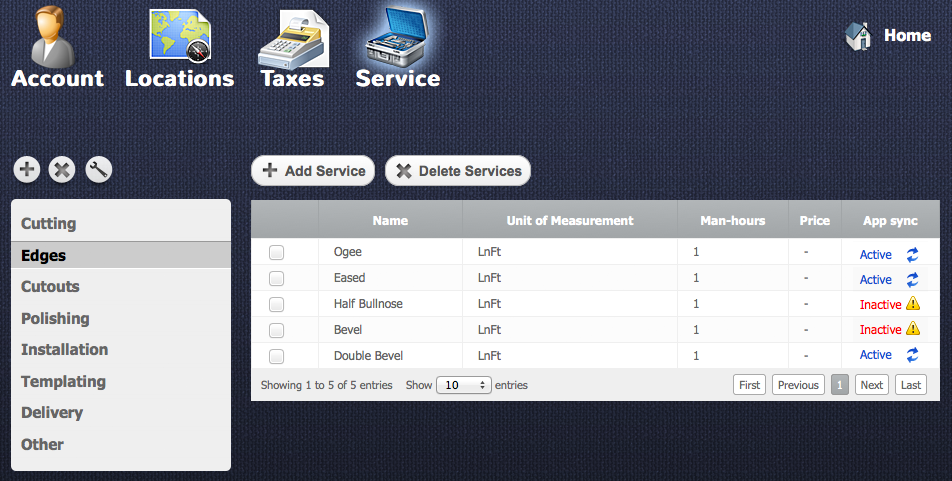
Adding Service
Return to topIn order to add service you have to click on “Add Service” button  after that services library will appear. There you should select the service.
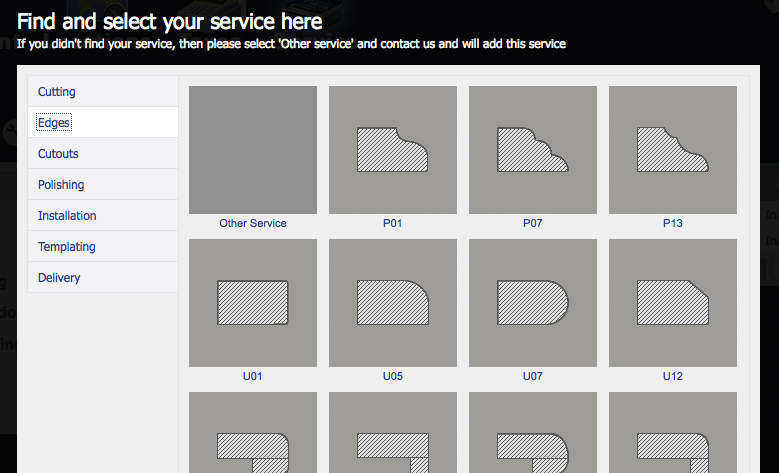
If you didn’t find your service then you should select “Other Service”. After you select the service you will be redirected to “Service Details” page
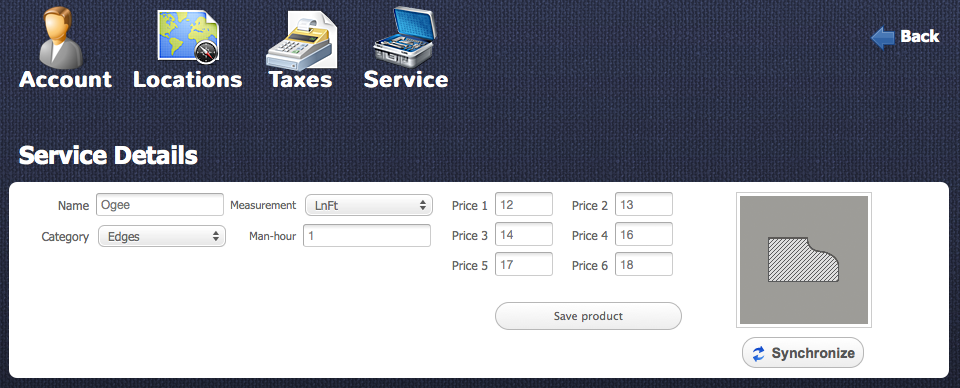
In this section you can edit some basic information about current service:
- Name – name of the service
- Category – name of the category where the service will be located
- Measurement – here you can select unit of measurement for the service
- Man-hour – here you should type quantity of hours that are needed to fulfill one linear foot, one square foot etc. of the service.
- Price group– consist of 6 different prices. Each client has his own price group and according to this group the price will be assigned to client (e.g. Price1 or Price4)
- Synchronize - This button connects current service to some application like 3DShowrrom, Product Gallery, Quotes and others. If the service is not synchronized then it will not work correctly with these programs.
Synchronization of Service
Return to topLots of web, iPad and desktop applications are connected to your account and if synchronization for your service is active (see image on the right) then the service will be used in these apps.
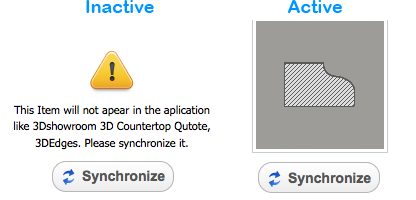
If your service has a warning massage then synchronization for this service is inactive (see image on the left). To synchronize the service you have to click on "Synchronize" button  and then select a service from a service list, which will appear. Also you can re-synchronize some synchronized services.
Editing Service
Return to topTo edit a service you need to click on this service in the table. After that “Service Details” window will appear.
Here you can update the information regarding the service. To save the changes you need to click on a “Save Service” button.
Deleting Service
Return to topTo delete some service you should select a checkbox  opposite the service and then click on “Delete Service” button
  . Please be careful, because after that you will not be able to renew the deleted service.
Editing Categories
Return to topWith help of categories you can group your services according to their type.
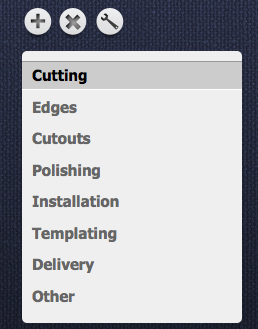
To add some category you should press “Add” button  . After that you will see a pop-up window “New Category”.
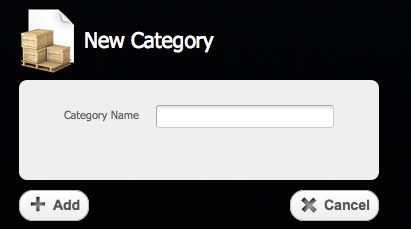
There you should type a category's name. To complete the changes you have to click on “Add” button  or “Cancel” button
  to cancel everything.
To delete some category you should select the category from the list and press the “Delete” button  . After you deleted the category all products from that category will be moved to category with name “Other”. The category “Other” can’t be deleted from the categories list.
To edit a category you should select the category from the list and press the “Edit” button  and then in the pop-up window “Edit Category” you can make changes. To complete the changes you have to press “Apply” button
  or click on “Cancel” button to cancel everything.


