3DEdges
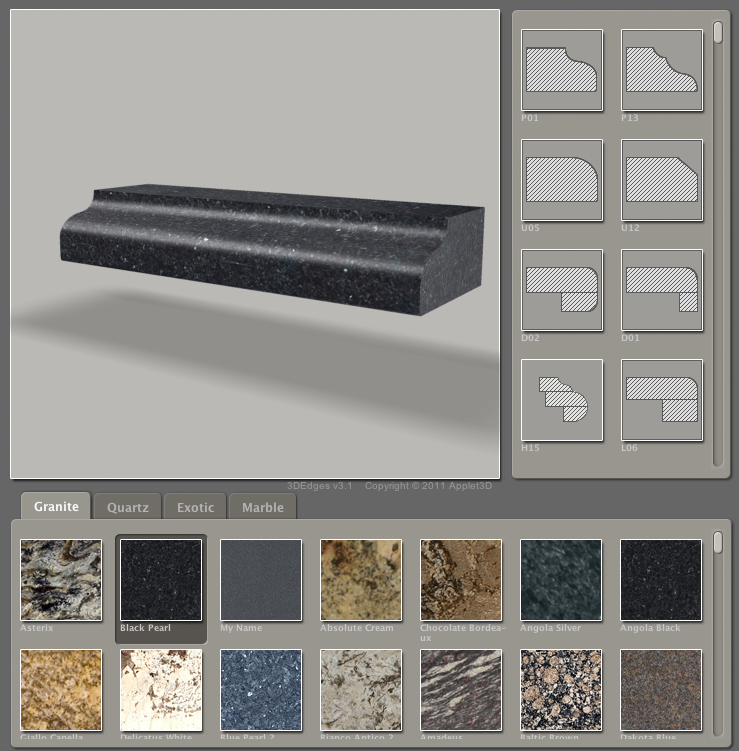
3DEdges is the best way to show your edge profiles assortment on your website. With 3D Edges your website visitors will be able to change edge profiles and stone colors and then zoom and rotate them to different sides in 3D environment.
Adding Colors and Edges
Return to topColors will be added automatically after you add products to your inventory. See how to add products to inventory here. Edges will be added automatically as well after you add them to your services. See how to add edges to services here.
Installation
Return to top3DEdges can be installed on any website. To install it on your website you have to click on a “Settings” button  in the 3DEdges frame, after that a “3DEdges Settings” window will appear. If you see a ”Buy It” button
  instead of the “Settings“ button then you should click on it and buy some subscription plan, after that the “Settings” button will appear.
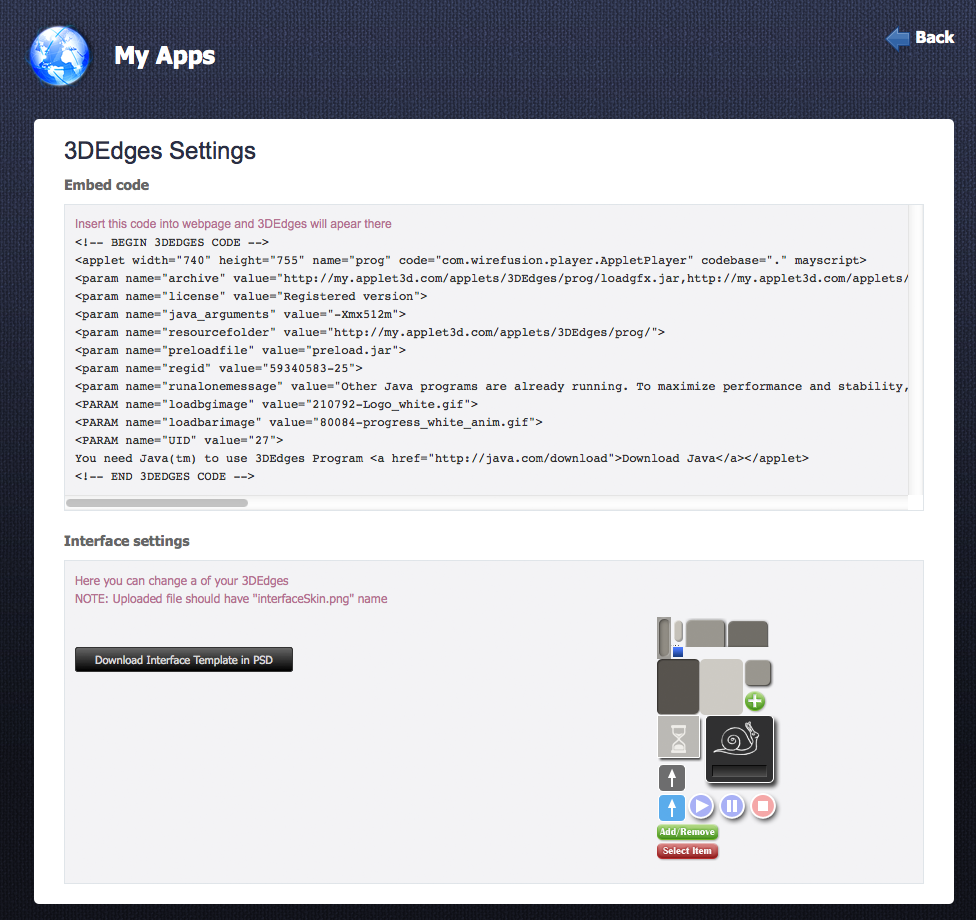
To install 3DEdges you have to copy a code from the “Embed code” field and paste it into your webpage.
Changing of Interface Skin
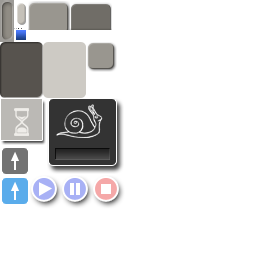
Return to topYou can create custom user interface skin for 3DEdges! To do it you have to upload your own user interface skin. The interface template in PSD format (Photoshop file format) you can download by clicking on “Download Interface Template in PSD” button. After that you will see image like below.
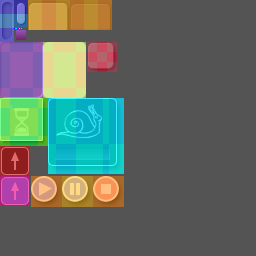
This file contains a color mask that will help you to understand where the controls skins are located. Also you can change a background color and fonts colors, for this purpose file contains group of pixels that are marked with read rectangle in the picture below.
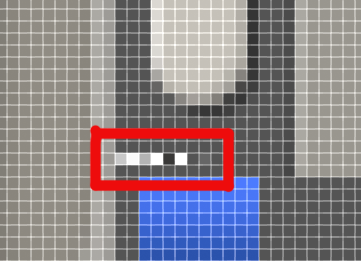
After you finished the interface skin modification you should upload file with name “interfaceSkin.png” by clicking on “Upload Interface Skin” button. Please make sure that uploaded file doesn’t have a background and all interface items are on their places, like on the example below.