Barcodes & QR codes
If you want some information in your document to be presented in a compact form you may use barcode and QR code adding functions. These codes can be read by such mobile devices like iPhone, iPad, iPod and android devices. Having aimed your device at these codes, just in few seconds a unit details page will appear on your screen.
Barcodes
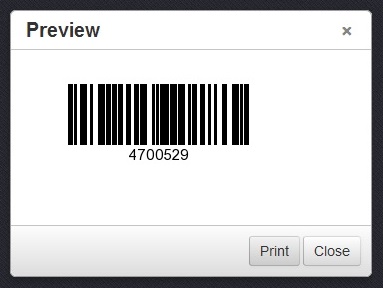
Return to topTo add a barcode to your document you have to choose a place for it and click on the corresponding button which is situated under the text editing pannel. You may accustom this barcode to your needs according to 3 parameters: position, type and code source. You may choose a fixed code or unit ID as a source for your barcode.
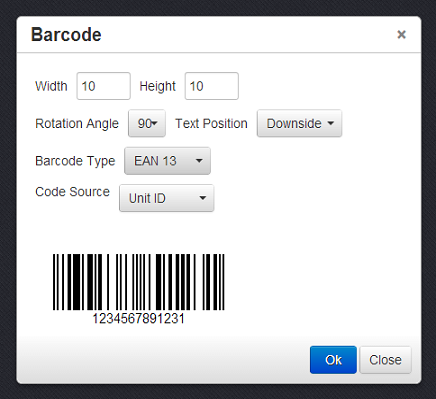
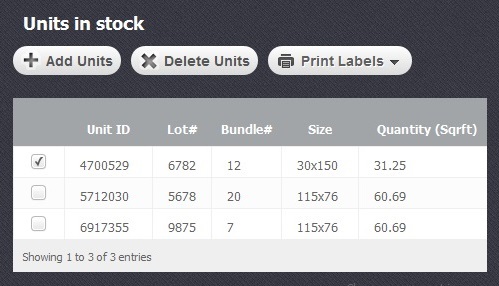
Moreover, you may create templates for your labels and afterwards print them. To do that you must follow to the "Inventory" module, in "Units in stock" section select a checkbox  opposite the concrete item and click on "Print labels" button. You will see a generated barcode bearing the item ID or your chosen fixed code.
QR codes
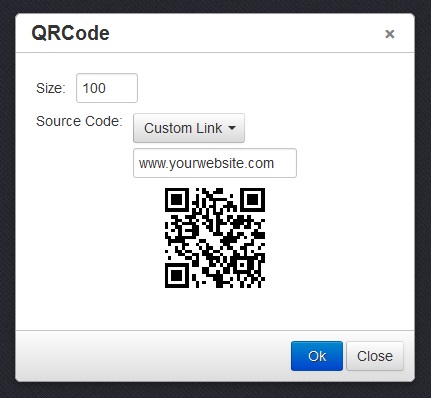
Return to topQR codes are added the same way as barcodes, but they may contain much more information. All you have to do is just to find a suitable place in your document and click on "QR code" button. After that you have to choose size of your code or leave this field empty and let the system do it for you. The source of the code may be any link of your choice. If system is chosen for that purpose than the QR code information will be different depending on the item chosen for label printing in the "Inventory" module.
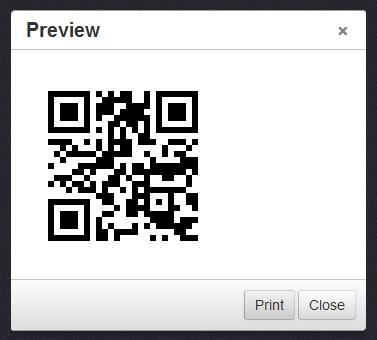
You may use QR code generation functions as well in two ways. First of all to attach full information about certain items or your company to your documents in a compact form. Secondly, to print lables and stick them to your products in your showroom or warehouse. Your clients will be able to quickly get all the necessary information just walking and using their mobile devices. After a client reads the QR code he will be automatically redirected to your "Invenory" module in Easystoneshop. Having once logged in, he will be able to see the full information about the chosen product as well as another products without any further logging in.