
Categories
With categories you can group your products according to their type (Granite, Exotic, Marble etc.. ). You can add, remove and edit categories.
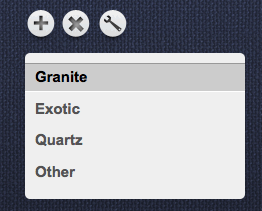
Adding New Category
Return to topIn the inventory section you can add remove categories. To add some category you should press “Add” button . After that you will see a pop-up window “New Category”.
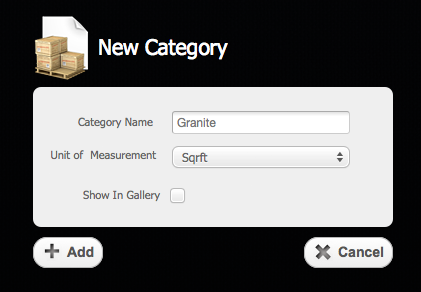
There you should type the category's name and select an unit of measurement. Also you can check or uncheck “Show in Gallery”. If the check box is checked then this section will be shown in the Product Gallery application. To complete the changes you have to click on “Add” Button  or click on “Cancel” button
  to cancel everything
Deleting Category
Return to topTo delete some category you should select the category from the list and press the “Delete” button . After you deleted the category all products from that category will be moved to category with name “Other”. The category “Other” can´t be deleted from the categories list.
Editing Category
Return to topTo edit some category you should select the category from the list and press the “Edit” button and then in the pop-up window “Edit Category” you can make the next changes:
- Change name of the category
- Change “Show in Gallery” state
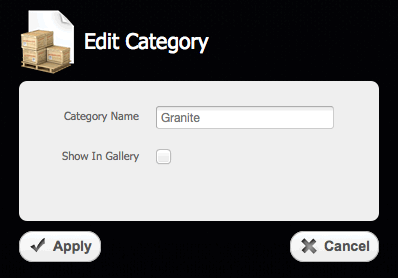
To complete the changes you have to press “Apply” button  or click on “Cancel” button to cancel everything.


