3DShowroom Touch
In this module we will explain how to prepare 3DShowroom Touch for work and accustom it the way it reached its top productivity and quickness at your computer. As well here you can find out how to sunchronize your 3Dshowroom Touch with the products at your website.
Installation
Return to topThe program does not require actual installation. All you have to do is just to unpack the archive file into any directory at your computer you wish. After it is done, go to that directory and launch a 3DshowroomWin.exe file.

Settings
Return to top3DShowroom Touch works with graphics, before it starts it is necessary to select the screen resolution and graphics quality. The last one implies the two parameters - quickness and productivity. Your task is to select the most optimal settings taking into account you system peculiarities.
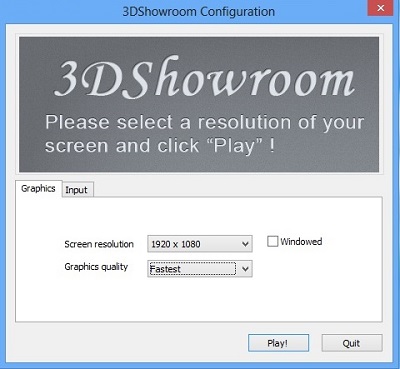
If your system has an old video card or a built-in one we recommend selecting your top screen resolution but at the same time the "Fast" or "Fastest" graphics option. That will help to avoid the chance of
slowdown of program's work. If you wish the program screen to be windowed you have to select a corresponding checkbox  to the right.
Synchronization
Return to topThe next step is choosing the stone colors used. There are two possible variants. The first one is to use the default stone colors, the second - the colors from your website. Now we will explain you here how it all works.
To be able to work with your own stone products in 3DShowroom you must be a registered user of our ERP/CRM system "Easystoneshop" at www.easystoneshop.com. There you can create an account and add all the stuff you have to your personal web inventory. In the process of registration the system will request your website address and later 3DShowroom will be able to recognize and load your added products when you enter it.
A detailed explanation how you can add your stone products may be found in our tutorial Starting your web Inventory or in the Help section.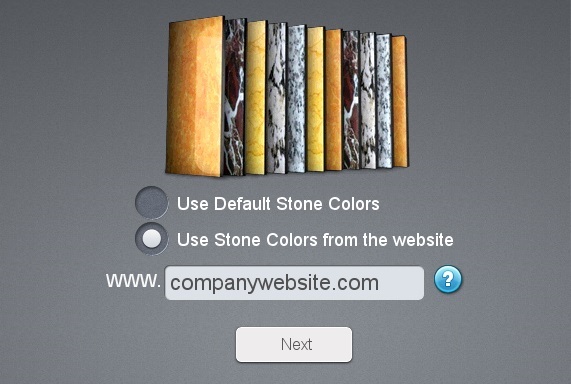
After you made your choice you have to click on the "Next" button to proceed to the loading of the program and the update offer. You may accept or decline the offer by clicking on "YES" or "NO" buttons.
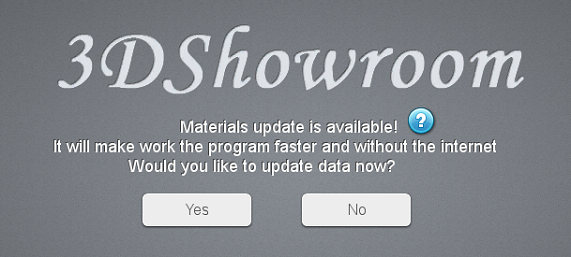
If you want to make the program work faster you should choose "YES". It implies downloading some files from the internet and saving them to your computer thus excluding the necessity of the internet connection. This procedure will take some time. As well you may chose "NO", save your time and go ahead, despite that the program will work very well.
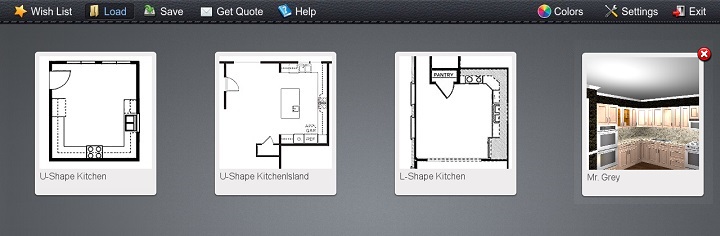
The last step of preparation is the choice of the kitchen's type. There are four main types presented. Having done that the main screen of the program opens and you may start working with it.
Main Menu
This is the control panel of your design project. Here you will be able to keep the clients' wished stone products or edges even if they haven't decided yet what to buy, save their design or start a new one if they suddenly changed their minds concerning the type of the kitchen. Get some help and of course change previously selected settings.
 Navigation
Navigation
Return to topA couple of tools are used to move inside the program. The first one can be seen in the picture below. Touching this joystick you will be able to go ahead, back, to the left and to the right. Control of the view is exercised through touches hold and moved higher, lower, to the left and to the right. As an alternative way of navigation a keyboard and a mouse can be used.

Wish List
Return to topIn wish list the products which your customers liked and added are kept. To add them you have to click on thumbnails in the window at the bottom of the page which indicates what is currently chosen and applied in your client's kitchen design.
If he saves his project, you will be able to see his wish list in his account at Easystoneshop and thus with the help of 3DShowroom you may have a database of definite clients' wishes and tastes. To make it possible registration of a client in Easystoneshop will be obligatory. How it all works you may see in our Help section.
Load/Save
Return to topThe option "Load" is used to go back to the selection of another kitchen type in case a client decided to change it. It is used also to load one of the already existing and previously saved projects.
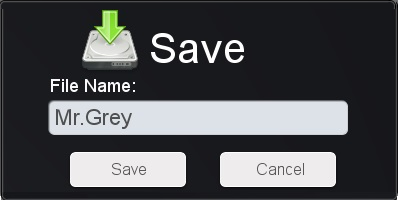
The option "Save" is used to save your client's design project in the program's database and his wishlist in the client's account at Easystoneshop. To save the file with the project you have just to name it and click on the corresponding button.
Help
Return to topA small help option is inserted into the program. If you choose it, blue icons with question marks will appear at some places of the screen. Clicking on such an icon will call the window where it is said what and how the corresponding element of the program is used. One of the examples is shown in the picture below.
Colors
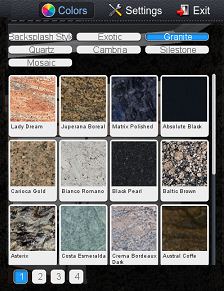
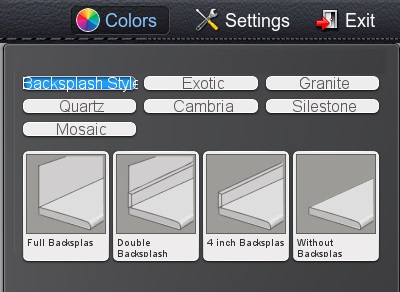
Return to topA color browser is the most substantial element of the program. Except colors a number of things can be changed here. It appears when you choose the option "Colors" and looks each time differently when you select various elements of the kitchen. A more detailed description of the functions this browser has was given in our tutorial 3DShowroom - Kitchen Designer
Settings
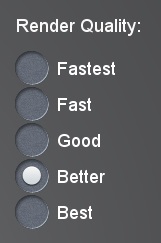
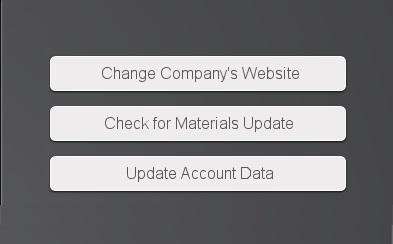
Return to topYou may choose "Settings" option to change all previously selected parameters. In the picture below you may see that these are the company's website and quality of graphics, updates of material and data of the account connected to Easystoneshop.