
Orders
With the help of this section you can edit and control list of your orders. Add new and delete those which are done. As well here you may quickly find the order you need among lots of others using search.
Adding Orders
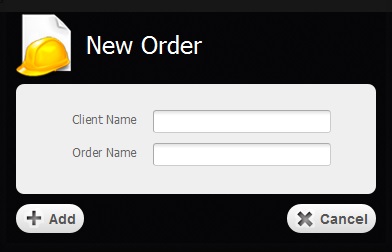
Return to topTo add a new order you have to click on "Add Order" button. Before you are able to manage your new order you'll have to create a client's account and to fill in the empty fields as it is shown in the picture below. If you have created the client's account before, you just have to choose one from the list that appears when you start typing the name of client.
Working with Table
Return to topProcessed quotes appear in the table of orders. To sort data according to each column of the table, you just have to click on some column's name. If you click on the same column once again the sort direction will be changed.
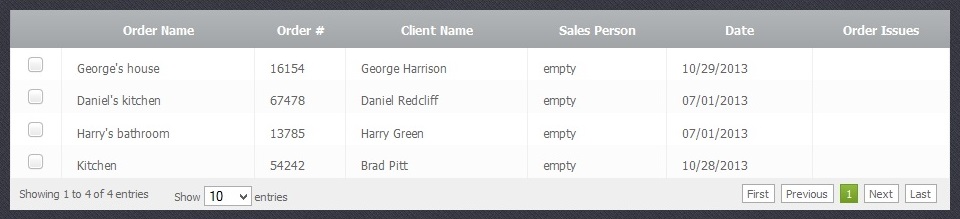
The table is divided into several columns:
- Order Name – Name of the order
- Order# - A unique number given to the order
- Client Name – Name of the client
- Sales Person – Name of the person who sells products and services
- Date - A precise date when the order was created.
- Order Issues - Additional information which was added in the "Notes" field.
Searching Orders
Return to topAbove the table you can find search control group. In the droop-down menu near the search field you need to select a column name where you would like to search. After that enter a key word and as a result you will see that the order list is reduced.
Deleting Orders
Return to top
To delete an existing order you have to select a chechbox  and click on "Delete Order" button. Please be careful, because after that you will not be able to renew the deleted order.


