Messaging
Messaging is one of the paid services of Easystoneshop. Before you will be able to send a text message (sms) or email directly from the system's modules you first have to organize the necessary information in a form of a separate template. A detailed information about how to add templates of messages and edit them before sending can be found in Docs module of the help section.
There are two types of messages available for sending: text message (sms) and email. Eeach type of the document has a limited amount of actions possible to be applied to it and it is available only in the module which was chosen when it was created. That means that emails and sms will be available only for sending while document-type templates only for printing. There's also a list of modules which support messaging:
- Orders module - Send information to your clients about the status of their orders.
- Quotes module – Send your clients quote details.
- Clients module - Messaging clients from prepared templates can be done in this module.
- Employees module - As well as clients you may notify your employess with greeting or reminding emails and sms.
Sending text messages (sms)
Return to topText message (sms) is a widespread and conveniet way of sharing information. It costs depending on its destination. In Easystoneshop to send sms to the US costs 0.11 credit. To know more about the system of credits and prices please get familiar with the Credits module of the help section.
To make sure your addressee receives your message it is advisable to check if his cell number was entered in a correct format. To do that you may visit "Messaging" help sections of these modules.
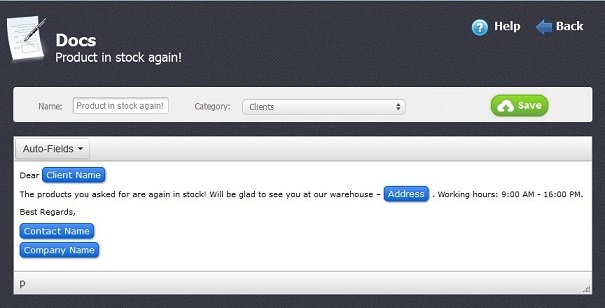
Templates of various modules look different. Here we give you an example of how a template of text message (sms) can look like:
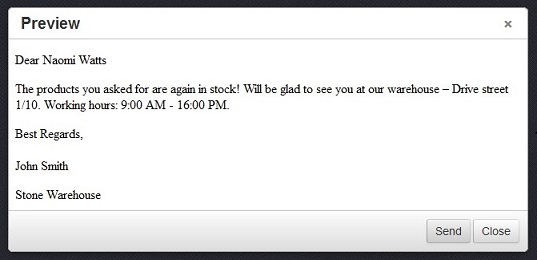
When you have a template which you need to use, go to the he main page of the corresponding module, select a checkbox  opposite the client, employee, order or quote and choose one of your templates. As a result the preview of your text message (sms) will be shown, check it and if it's ok click on the “Send” button.
Sending Emails
Return to topAnother type of messaging is Email. You may send an email to your addressee just for 0.05 credit. Using email you may give much more information, attach files, etc. Just like it was with messaging it is advisable to check if the email address you have is written correctly.
An example of letter is shown in the picture below:
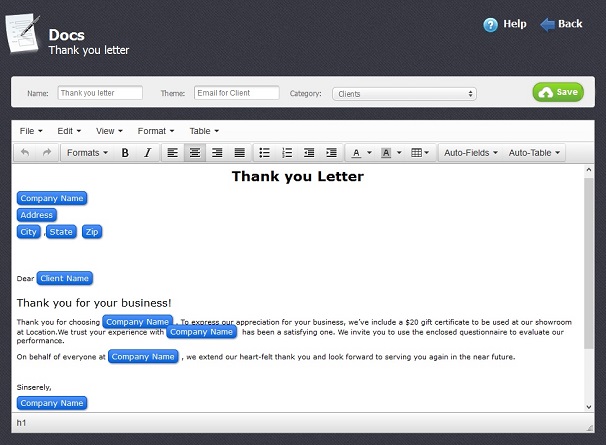
The procedure of generating an email from your template is the same. You select a checkbox at the main page of the corresponding module and choose one of your templates. Here is how your email will look like before you send it:
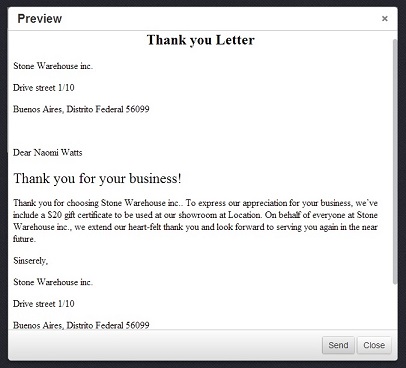
So, you have looked through your letter and if you'd like to change something you may go back to the "Docs" module or if everything is right click on "Send button".


