
Products
With the product section you can edit and control list of your products. Track quantity of available, hold and allocated product units!
Working with Table
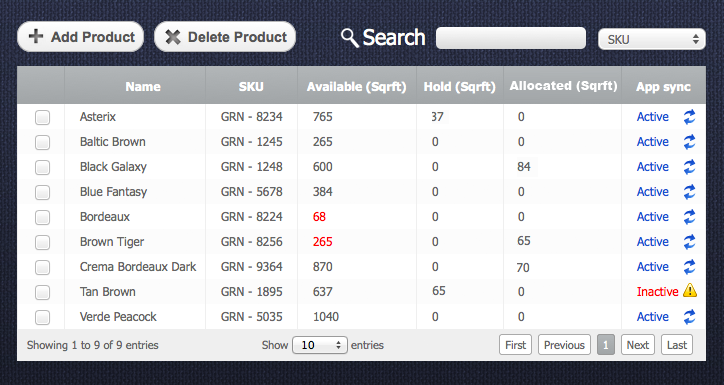
Return to topTo sort data according to each column of the table, you just have to click on some column's name. If you click on the same column once again the sort direction will be changed.
The table is divided on several columns:
- Name - Name of the product.
- SKU - stock-keeping unit is a number or code used to identify each unique product.
- Available - quantity of product which are available.
- Hold - quantity of product that was hold for some client.
- Allocated - quantity of product that was allocated for order.
- App Sync - is a status of synchronization of current product with applications like 3DShowroom, Quote, Product Gallery etc. If status is active the application will work better with this product.
In case if quantity of some product is less than you need to have in stock then it will be highlighted with a red color.
Searching Products
Return to topAbove the table you can find search control group.

In the droop-down menu near the search field you need to select a column name where you would like to search. After that enter a key word and as a result you will see that the product list is reduced.
Adding Product
Return to topClick on “Add Product” button after that list of different products will appear. You should find and select some product there if you didn't find the product then select “Other Color” thumbnail.
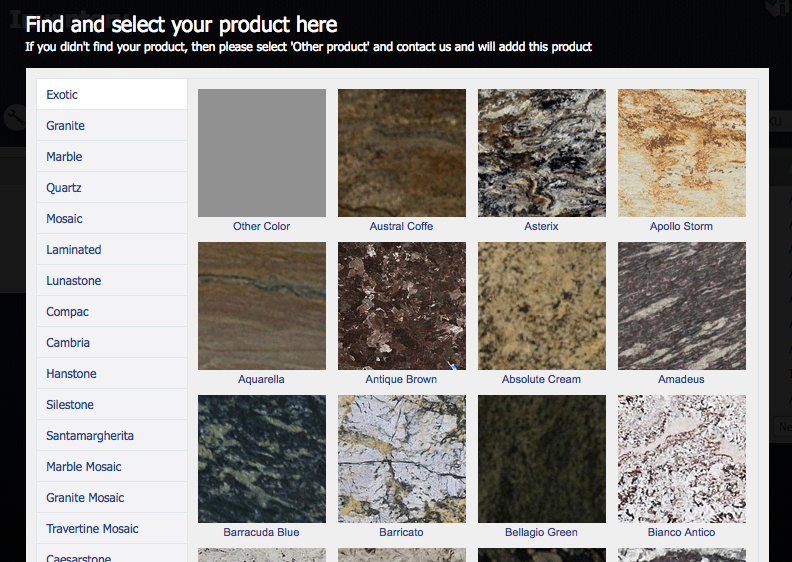
After you select some product the product details page will appear. There you can add some units to the products like slabs, tiles etc.
Deleting Product
Return to topTo delete some product or products you should select a checkbox  opposite the products and then click on “Delete Product” button
 . Please be careful, because after that you will not be able to renew the units in the deleted product.


