
Order Items
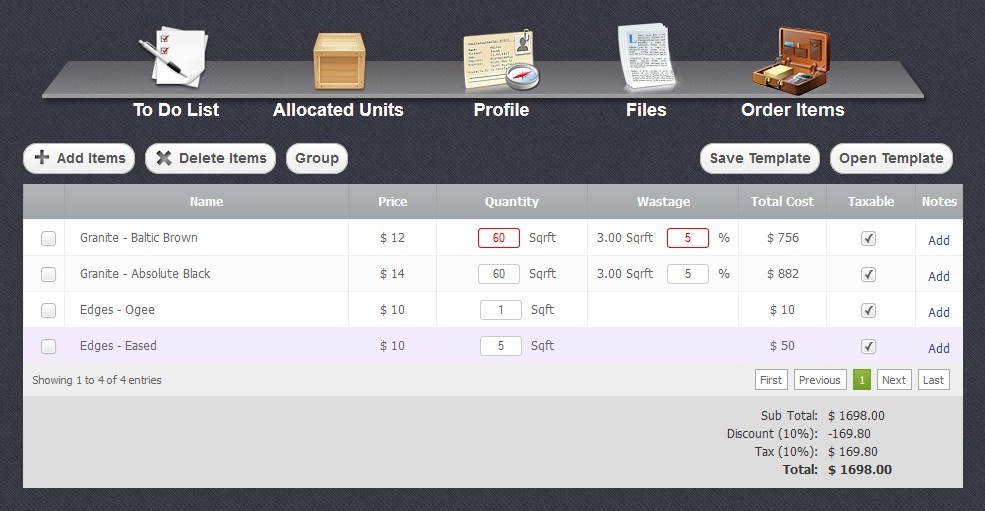
With "Order Items" section you can see the amount of goods and services the order contains. All the calculations of their prices including discount and taxes automatically made by the system are being made and shown here. You may edit the total price of the order by changing the original amount of products and services.
Adding and Deleting Items
Return to topTo add units of some products or services you need to click on "Add Items" button. Selecting a checkbox  and pressing "Delete Items" button will remove them from the list.

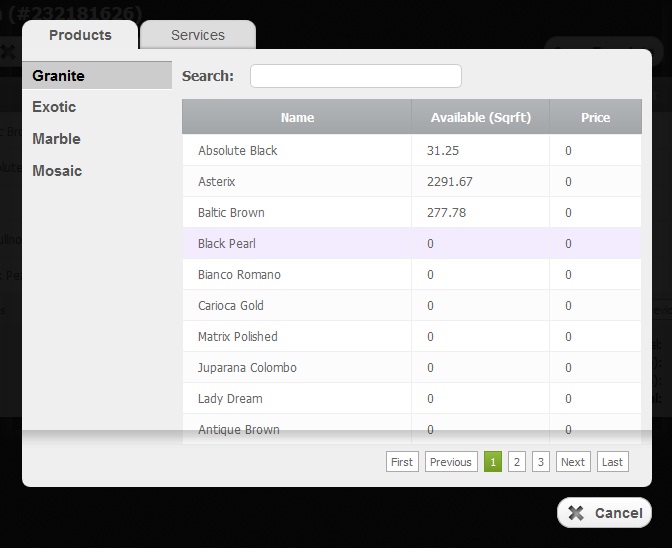
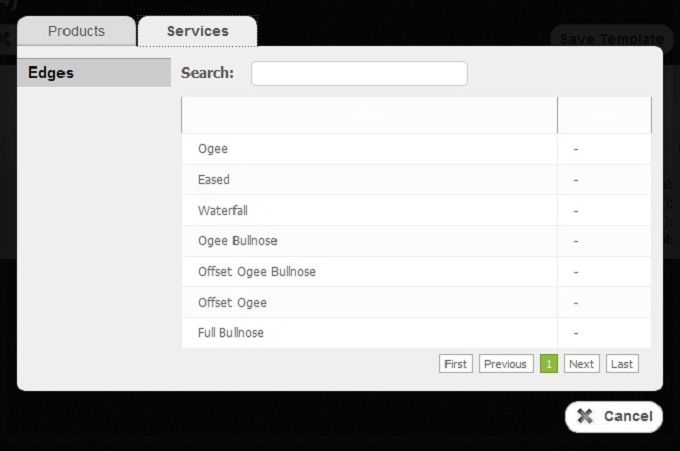
When you add an item, you will see a table divided into two corresponding columns.
In the "Products menu there are four main types of the products, each type includes a variety of examples each having its own name, price, showing its own availability standing opposite it.
In the "Services" menu there are examples of edges each one having its own name and price.
Working with Table
Return to topIn the picture below a table with added products and services is shown. The table has seven columns. To sort data according to each column of the table, you just have to click on some column's name. If you click on the same column once again the sort direction will be changed
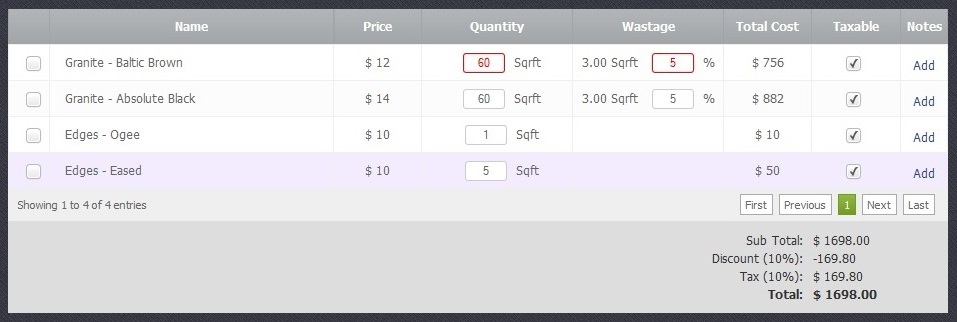
Here the following data is kept:
- Name - Name of the product or service
- Price - Price of the product or service
- Quantity - Amount of chosen products or services
- Wastage - Amount of assumed wastage
- Total Cost - A final price of the products or services with discounts and taxes included if chosen.
- Taxable - A checkbox that adds the sum of the selected tax to your products or services.
- Notes - A field which you can complete with all additional information you wish.
To complete the changes you have to press "Apply" button  or click on "Cancel" button
  to cancel everything.
Groups
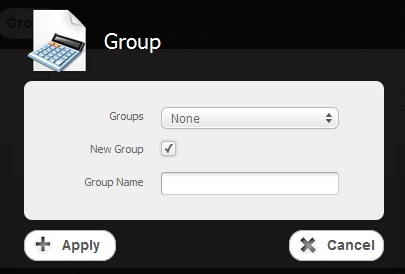
Return to topYou can combine products and services into groups giving each group its own name. To do that you just simply have to select a checkbox of two or more products and services and click on "Group" button. In the menu that appeared you select a checkbox "New group", give it a name and press "Apply".
Templates
Return to topIt is also possible to use the selected products and services as a template in order not to add them many times again and again, but to have kept and named for a case. You can do it just the same way it was with groups. You save a Template and give it a name:
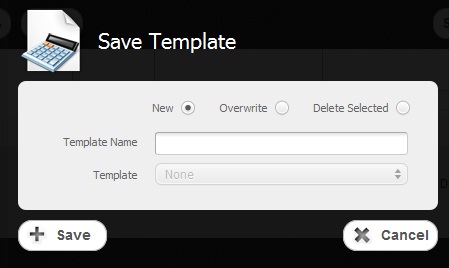
Saving a new template you can not only add a new one, but also overwrite the already existing one. As well it is possible to delete any template. All you have to do is to select corresponding checkboxes and press corresponding buttons.
If you wish to create a new template at once, the button "Open Template" is made for that purpose and is situated nearby.



