
Suppliers
With this section you can add new suppliers and remove any of them from your list or choose from another one, of the already existing suppliers, who has registered in the system before.
Adding Suppliers
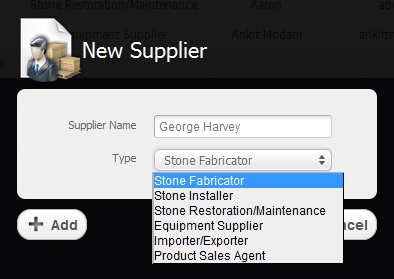
Return to topWhen you click on "Add Supplier" button, opens a window where you should give a name to your new supplier, choose its type and click on "Add" button as it is shown in the picture below.
Besides, you can choose a supplier from the list offered by the system. To do that you have to type two first letters in the "Supplier Name" field for the list to appear. After that you make your choice and click on "Add" button as well.
After that you will be redirected to the "Profile" menu where you can finish adding your new supplier or will be able to edit information concerning the chosen one.
Working with Table
Return to topAs soon as you add a new supplier he will appear in the table of suppliers. To sort data according to each column of the table, you just have to click on some column's name. If you click on the same column once again the sort direction will be changed.
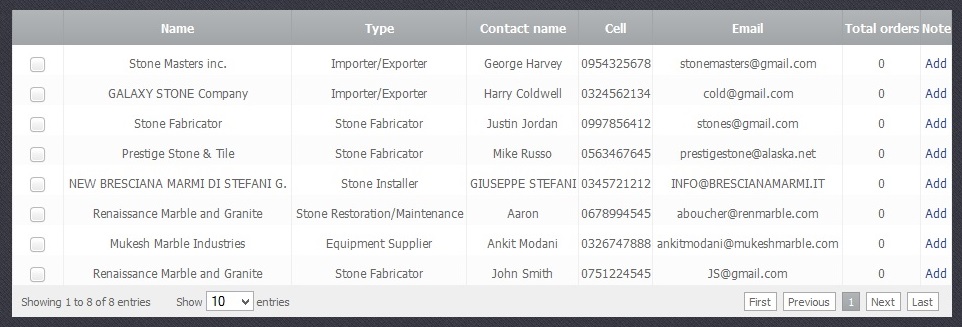
The table is divided into several columns:
- Name - Your supplier's name.
- Type - Chosen type of the supplier
- Contact Name - Name of the person who's responsible for contacts
- Cell - Number of the mobile phone
- Email - Email needed for contact
- Total Orders - The amount of ordered products or services
- Note - A field where you can add some additional information of your choice.
When you click on any supplier in the table you are redirected to the main screen of the "Suppliers" section.
Here you can see all the information concerning the chosen supplier divided into three menues:"Pofile","Purchases","Price list".
Deleting Suppliers
Return to topTo delete an existing supplier from your list you have to select a checkbox  opposite it and click on the "Delete Supplier" button. Please be careful, because after that you will not be able to renew the deleted supplier.