Messaging
One of the paid services of Easystoneshop is sending messages to your clients. This function may be used for example if you have the order in process and a client may ask you to send messages informing him about its status. As well it's convenient to inform customers about some new stuff you have in stock.

Sending Text Messages (sms)
Return to topEasystoneshop gives you an ability to send text messages to your clients. Such messages cost depending on their destination. To the US the price is 0.11 credit. More information about the system of credits and prices please can be found in Credits module of the help section.
Before you send a text message you have to check a couple of things. First make sure you have some templates of this type of document in "Docs" module of Easystoneshop. If you don't, you have to add them. Please follow to this module, compose a couple of templates and return here to know how to complete the process.
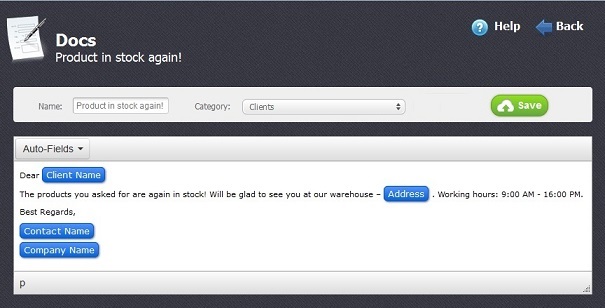
Use help section of the Docs module to get detailed information about how to add templates of messages and edit them before sending. Here we give an example of how such a template can look like:
Secondly, make sure that the cell number of your client was entered in a correct format. To know how to make the necessary settings you may follow to the Profile help section of the "Clients module".
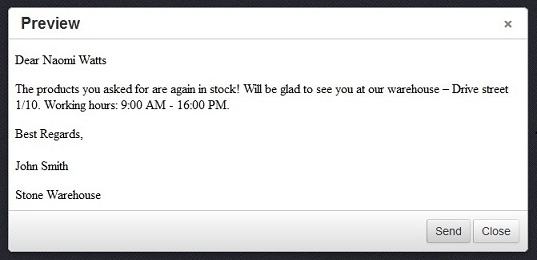
When everything is done, you have to go to the list of your clients at the main page of the module, select a checkbox  opposite the client you wish to send text message to and choose one of your templates. As a result the preview of your text message will be shown, check it and if it's ok click on the “Send” button.
Sending Emails
Return to topOne more useful function of Easystoneshop is email messaging. You may send an email to your client just for 0.05 credit. Using email you may tell your customers about your new discount programs, invite them to visit your showroom. If a client has made an order you may send a letter thanking for his choice of your company and offer additional services.
Just like with text messages this function wil not work if you have no templates of emails in the "Docs" module.
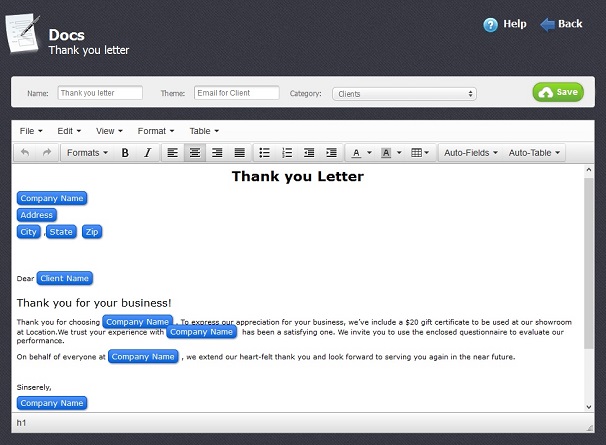
An example of letter is shown in the picture below.
The procedure of generating an email from your template is the same. You select a checkbox opposite the client you wish to send the email to and choose one of your templates. Here is how your email will look like before you send it:
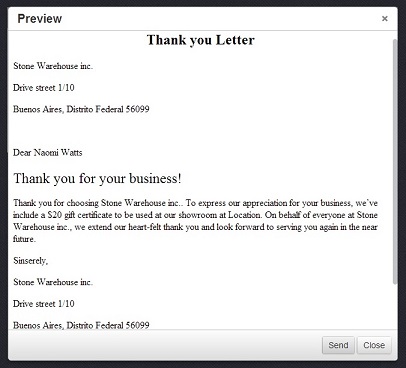
So, you have looked through your letter and if you'd like to change something you may go back to the "Docs" module or if everything is right click on "Send button".


