
Auto-Fileds & Auto-Tables
To ease the work with your stone business documentation "Docs" module of Easystoneshop offers the functions of text auto-complete: “Auto-Fields” and “Auto-Tables”. According to their names they will automatically take and insert the standard information which is present in every document or vice versus, some peculiar details looking for which will take a lot of time.

Auto-Fields
Return to topThis function is used mainly for creating documents in a text form. It can be helpful for example to avoid a constant typing of the name of your company, its address, state and zip at the top and at the bottom of your documents.
An important thing to rememver while creating a template is that you must not mix these functions, putting autofields inside tables and filling the text with autotables.
So, to add an auto-field to your document you just have to select the place where it will be situated, click on the "auto-field" button and select the necessary one from the drop-down list.
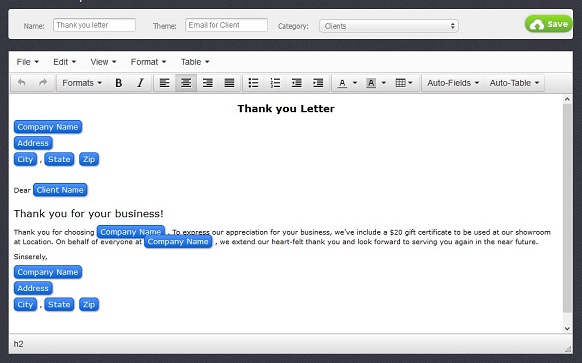
After it is done and the template is saved it can be used in a corresponding module. In the picture below an axample of a letter that is often sent to clients for example by email. Here is how your document will look like in a preview window before sending or printing.
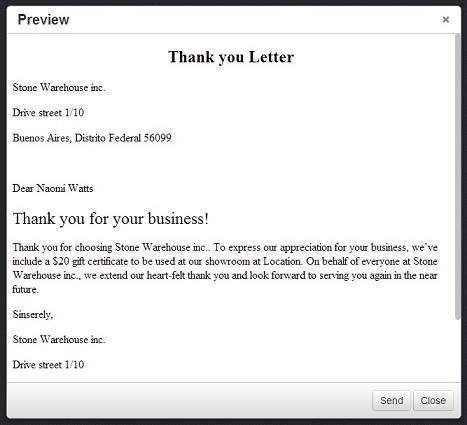
To be able to generate such docs from your templates, print or send them, there must be an absolute coincideness of the type of document and the module. If it is an email for client it will be available only for sending, not for printing and only in "Clients" module. The same situation is with text documents and sms.
Auto-Tables
Return to topThe best way of creating and organizing documents requiring a strictly set location of data in it is using auto-tables. Naturally, they are also used to generate a template that will contain information that is usually kept in table form. These are mainly tables of products and services presented together with their names, IDs, sizes and amounts on one hand and various types of their calculations on the other. The auto-tables of each module differ, but they certainly look similar, sometimes coincide.
You add an auto-table to your document the same way you added auto-fields. Select the place where it will be situated, click on the "auto-table" button and select the necessary one from the drop-down list.
After it is done and the template is saved it can be used in a corresponding module. In the picture below an axample of a document is shown that is usually presented in the form of a table. Here is how it will look like in a preview window before sending or printing.
To be able to generate such docs from your templates, print or send them, there must be an absolute coincideness of the type of document and the module. If it is an email for client it will be available only for sending, not for printing and only in "Clients" module. The same situation is with text documents and sms.


